Employees, report cards & tip-outs
Bring your roster in from a spreadsheet, link each person to the IDs your POS uses, and run one nightly close: confirm who worked and their hours, confirm sales and tips, preview every tip-out to the cent, then finalize and publish statements employees can read on their phones. Report cards turn shift sales into coaching that stays separate from the private personnel file.
Employee directory in every plan. Tip pools, tip-outs, nightly close and employee statements are in Operations Pro.
- General managers who close out the night
- Owners who sign off on tip policy
- Servers, bartenders and support staff who want to see their breakdown
Tip-outs get calculated on a spreadsheet at 1 a.m., errors surface on payday and nobody can see how the number was reached.
A repeatable close with an audit trail, statements staff can read, and a correction process instead of arguments.
What’s included
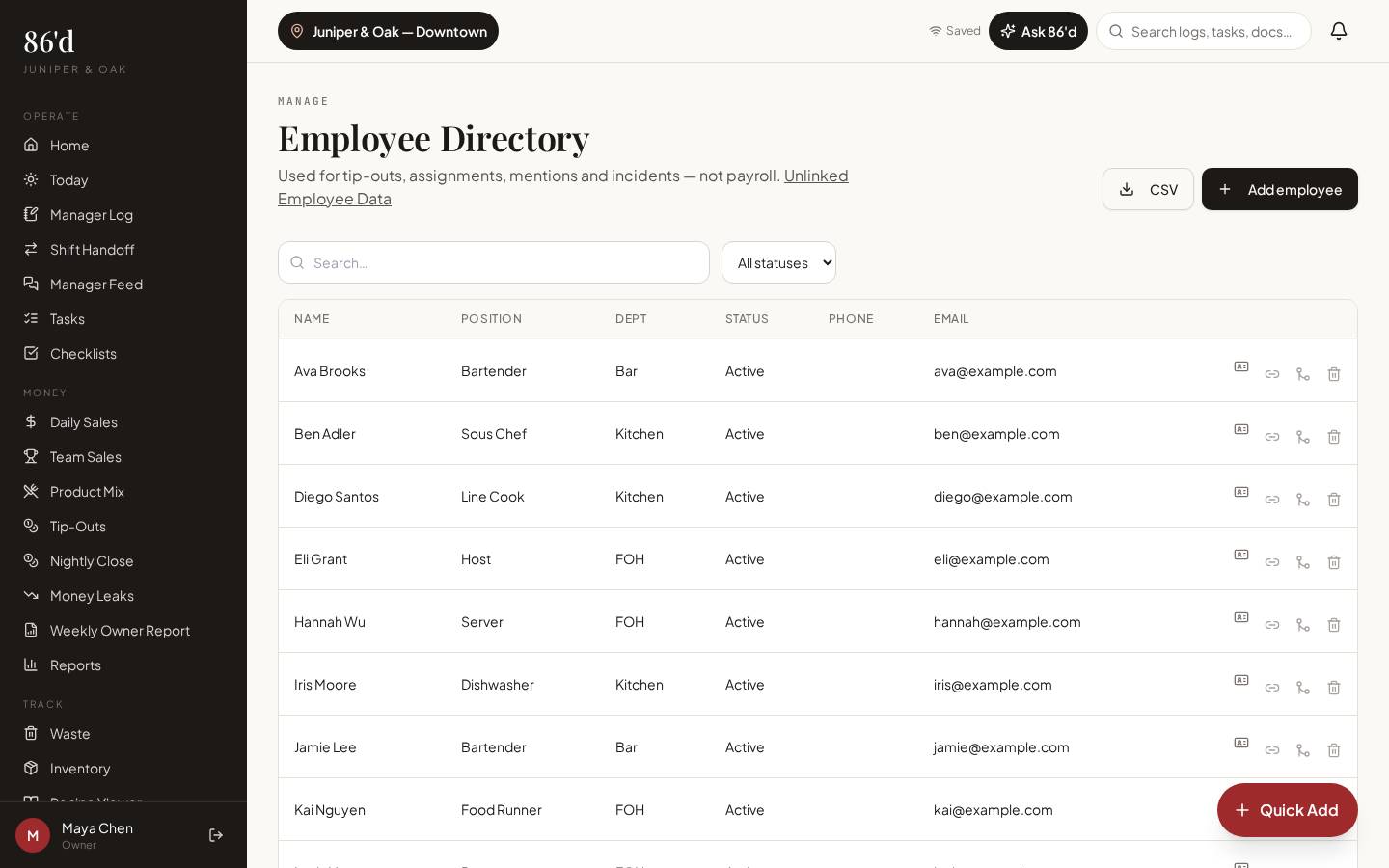
Employee directory & import
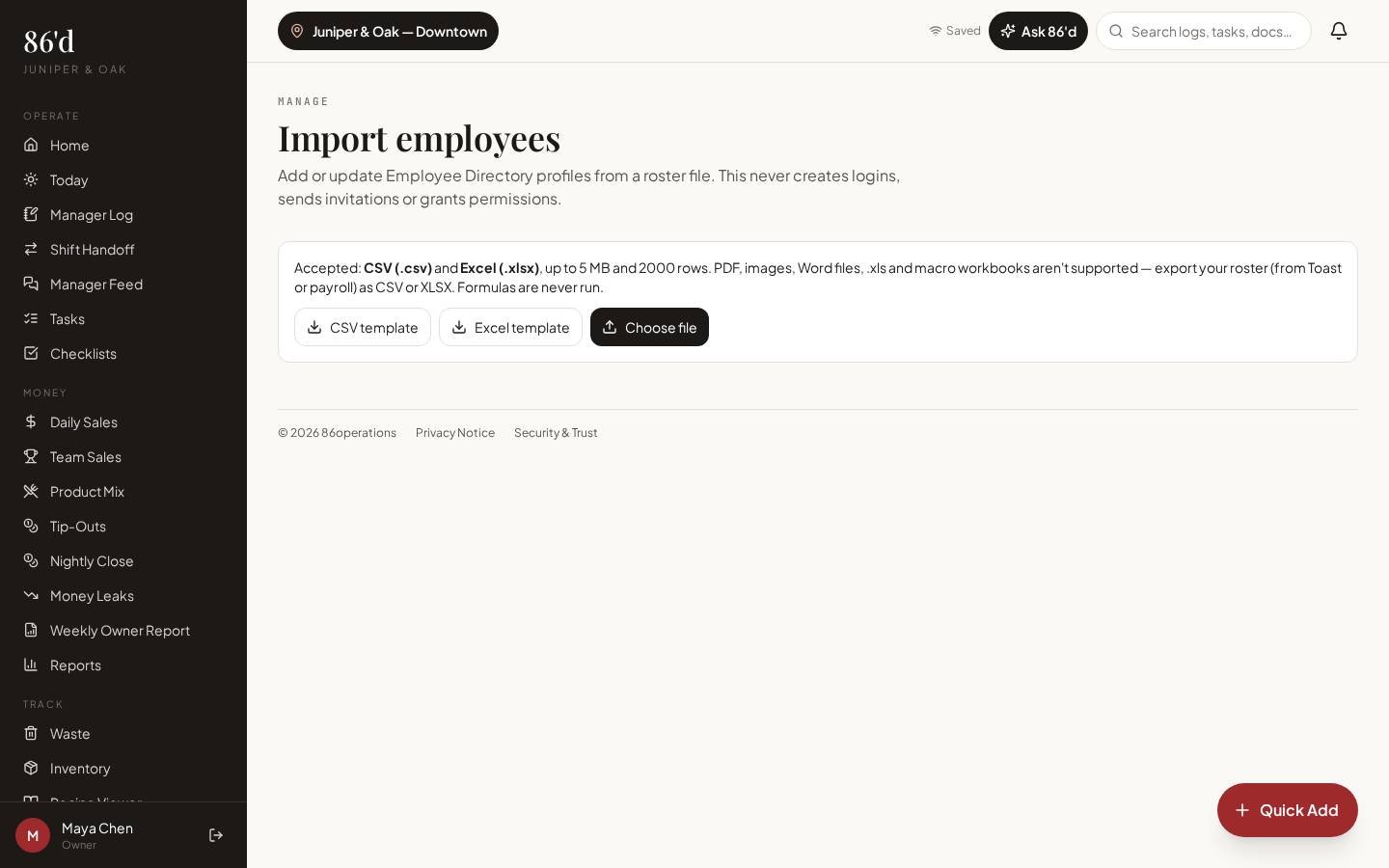
Upload a CSV or Excel roster, map columns once, preview changes, then commit. POS employee IDs link to one person.
Tip policy
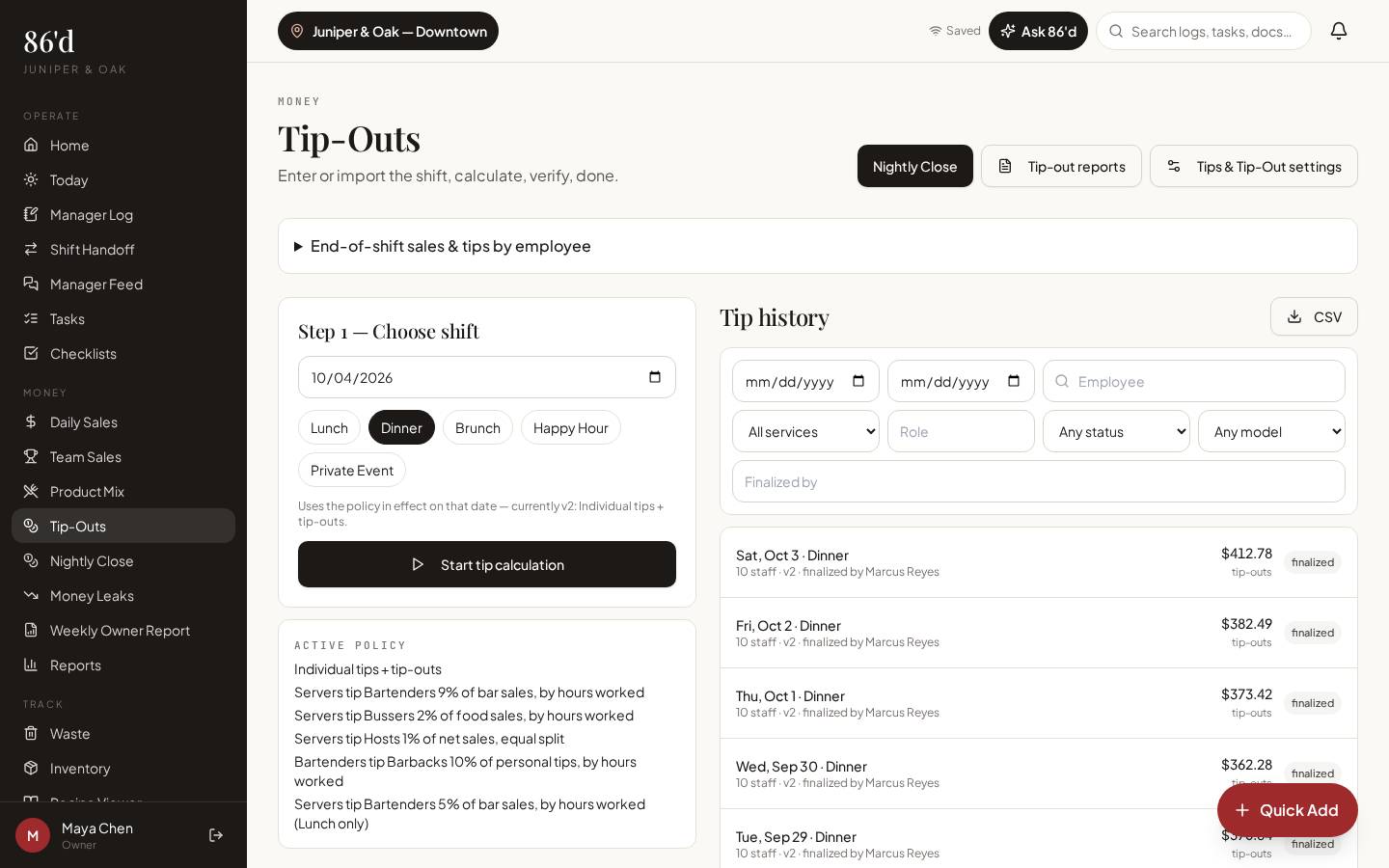
Describe how your location shares tips—pools, percentage tip-outs by role, or a template—test it, and save it as a version.
Nightly Close
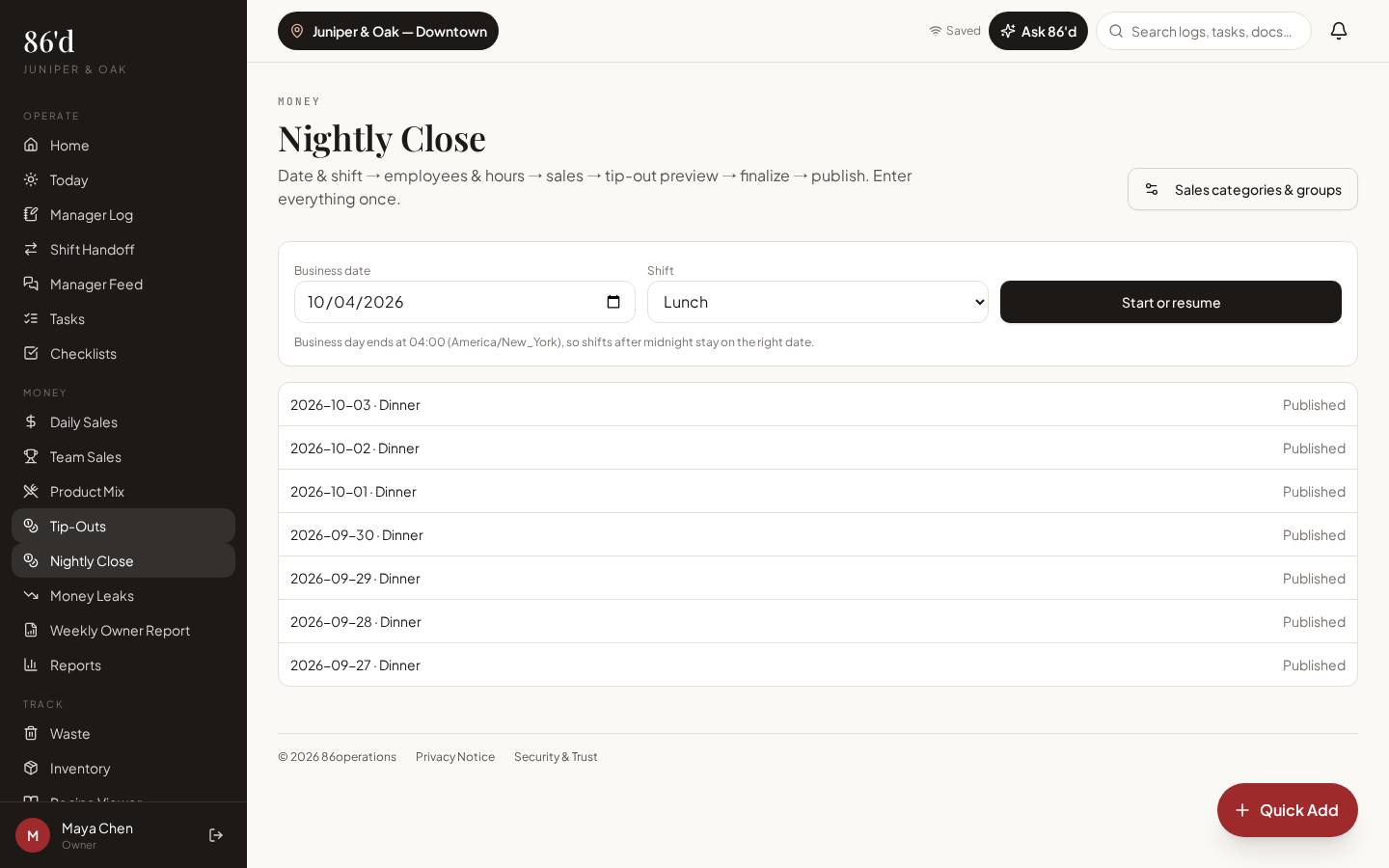
Four steps: Employees & hours → Sales → Tip-out preview → Finalize & publish.
Employee statements
Published tip-out amounts before taxes, with a clear notice that payroll is the final payment record and a “Request a correction” button.
Tip-Out Reports
Shift and period reports with printable PDF export.
Report cards & coaching
Growth-focused report cards shared with the employee (if you enable it). The personnel file stays with management.
Permissions & audit history
Per-person access to financial data, tips, report cards and inbox, with change history.
Schedule
BetaBuild the week, fix conflicts, publish; staff see only published shifts.
Walkthrough
- 1Go to Import Employees, upload your roster (.csv or .xlsx), match the columns and review the preview before committing.
- 2Open Tip-Outs → policy and choose how this location distributes tips. Run “Test policy” with sample numbers, then save the version.
- 3At close, open Nightly Close. Step 1: confirm who worked, their roles and hours.
- 4Step 2: confirm sales and tips for each person (entered or imported).
- 5Step 3: review the tip-out preview—every pool and transfer to the cent.
- 6Step 4: finalize and publish. Employees see their statement; corrections reopen the shift with a recorded reason.
What you need
- Employee roster (CSV/XLSX or manual)
- Hours and roles per shift
- Sales and tips per person
- Toast labor & server sales: Planned (import Toast CSV exports today)
- Tip policy and finalizing: owner/GM or users granted tip permissions
- Employees see only their own statements
What it produces
- Finalized tip-out records with version history
- Employee tip statements
- Printable tip-out PDFs
- Report cards
How it connects
- Sales & reporting
Server sales come from Daily Sales and Team Sales
- Employee app
Statements and report cards appear in the employee app
- Setup, permissions & security
Permissions decide who can finalize and who sees financial data
A server reads her statement and taps “Request a correction”—her bar tip-out used the wrong hours. The GM reopens the shift, fixes the hours, and republishes. The history shows both versions and the reason.
Illustrative only—not a customer result.
Questions
Does 86’d pay my staff?
No. 86’d calculates and documents tip-outs before taxes. Your payroll provider pays employees, and its statement is the final record.
Can employees see each other’s tips?
Employees see their own statements. Tip policy privacy settings control what pool details are shown.
What file types can I import?
Employee rosters: .csv and .xlsx. The importer previews every change before it writes anything.
Related
Employee app
Staff see their own tip statements, tasks, checklists, published schedule, growth and messages on their phone.
Read moreSales & reporting
See sales, labor, discounts and open issues for each location, compared with your own targets.
Read moreSetup, permissions & security
Restaurant Builder, team invites, individual permissions and security controls.
Read moreHow to run a nightly close and tip-out without the 1 a.m. spreadsheet
Read moreLast reviewed 2026-10-04. All guides
Know what’s happening in your restaurant—and what needs attention.
Start a 14-day free trial—no card required—or talk with us about your restaurant.